

“Automatic Update” vs. “Forced Update”
In this article, we’d like to introduce the new Forced Upgrade feature and clarify how it differs from Automatic Upgrade to help avoid any potential confusion between the two.
Automatic Upgrade
With the release of FortiOS 7.2.1, Fortinet introduced the Automatic Firmware Upgrade feature. As the name suggests, this feature automatically upgrades a FortiGate device whenever a new FortiOS patch release becomes available.
The feature is enabled by default on all FortiGate models. However, administrators can choose to disable it or postpone automatic upgrades according to their operational requirements.
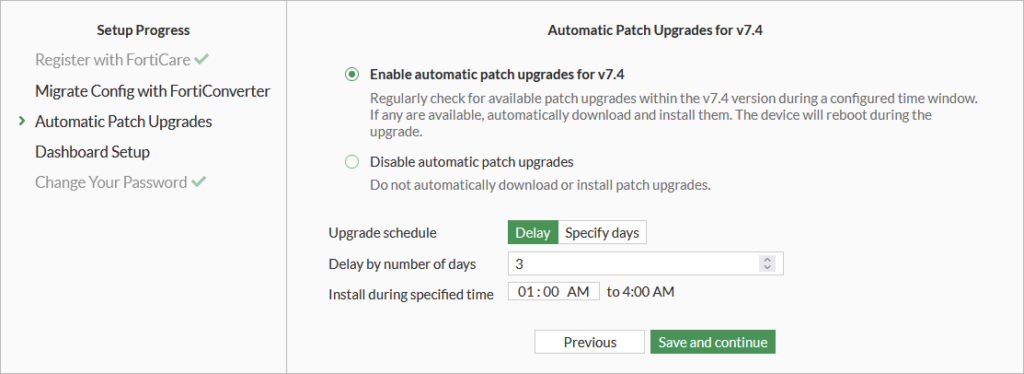
The primary goal of this feature is to help ensure that FortiGate devices are updated as quickly as possible, reducing the time they remain on older, potentially vulnerable firmware versions.
Forced Upgrade
Starting with FortiOS 7.4.8, 7.6.4, and 8.0.0, Fortinet introduced the Forced Upgrade Mechanism. A FortiGate will be automatically upgraded to the latest available patch release if either of the following conditions is met:
- The FortiGate no longer has a valid FortiCare contract.
- The FortiGate is running a minor release (defined by the second number in the version, e.g. 7.4.x) that has reached End of Engineering Support (EOES).
Important: Unlike Automatic Upgrade, Forced Upgrade cannot be disabled.
The only available option is to postpone the installation by seven days using the following CLI command:
execute auto-upgrade delay-installationExceptions
The Forced Upgrade mechanism does not apply in the following scenarios:
- The FortiGate is managed by FortiManager.
- The FortiGate is part of a Security Fabric.
- The FortiGate is a secondary member of a High Availability (HA) cluster.
Important: Both features only perform patch upgrades, only (for example, 7.6.6 → 7.6.7; see the version numbers explanation below for more details). They do not perform minor or major version upgrades.
Check the Forced Upgrade Status
You can check the Forced Upgrade Status of your FortiGate using the CLI command execute auto-upgrade status:
# execute auto-upgrade status
Scheduled push image upgrade: no
Scheduled Config Restore: no
Scheduled Script Restore: no
Automatic image upgrade: Enabled (Forced).
        New image information may be fetched.
        Next new image info fetch scheduled at (local time) Tue Sep  8 03:44:37 2026
        New image installation will be forced.
        New image 7.6.7b3704(07006000FIMG0024206007) installation is scheduled to:
                start at Sun Sep 13 02:30:19 2026

                end by Sun Sep 13 05:00:00 2026

        Last new image info fetch executed at (local time) Mon Sep  7 04:16:37 2026
Further Information
More information about Automatic Upgrade, see: Enabling automatic firmware upgrades.
More information about Forced Upgrade, see: Required firmware upgrades for FortiGates with invalid support contracts or that have reached EOES
Current FortiOS Life Cycle
| FortiOS Version | End-of-Engineering-Support (EoES) | End-of-Support (EoS) |
|---|---|---|
| 8.0 | 2029-04-21 | 2030-10-21 |
| 7.6 (LTS) | 2028-07-25 | 2030-01-25 (Extended EOS: 2031-07-29) |
| 7.4 | 2027-05-11 | 2028-11-11 |
| 7.2 (LTS) | 2025-03-31 | 2026-09-30 (Extended EOS: 2028-03-31) |
| 7.0 | 2024-03-30 | 2025-09-30 |
Understanding FortiOS Version Numbers
Version: <major>.<minor>.<patch>-<build>, for example 7.6.7-3704
- Major Release: 7
- Minor Release: 6
- Patch Release: 7
- Build Number: 3704
